> For the complete documentation index, see [llms.txt](https://docs.powertable.com/llms.txt). Markdown versions of documentation pages are available by appending `.md` to page URLs; this page is available as [Markdown](https://docs.powertable.com/explore-powertable/product-updates-release-notes/whats-new-in-powertable-november-2025.md).
# What's New in PowerTable - November 2025
We’re excited to roll out the PowerTable November v1.2 release, packed with powerful new features and key enhancements. Introducing the [**Crosstab view**](#id-1.-crosstab-view) and a dedicated [**Bookmarks tab**](#id-2.-bookmarks), enabling faster data analysis and easier access to saved configurations.
Type 2 SCD configuration now allows adding a [standardized default end date](#id-3.-standardized-end-date-for-type-2-scds). We have included **user roles and permissions** that are aligned with Microsoft Fabric workspace roles, providing clearer access permissions over capabilities such as writeback, automation, approvals, and other CRUD operations.
We have also improved the usability of the [Gantt and Resource views](#id-5.-gantt-and-resource-view-improvements) by incorporating a new navigation bar, a scroll button for tasks, and export capabilities. Additionally, you’ll find enhancements across [**automation**](#id-4.-enhancements-in-automation), **the filter pane**, **group-by**, and the **logs section,** all designed to deliver a smoother and a more efficient workflow.
Let's look into the updates in detail:
## 1. Crosstab view
PowerTable now supports the much-anticipated crosstab view of your dataset, enabling you to make data-driven decisions.
If your dataset has at least one date field or a single-select field along with several value fields, you can use the crosstab view to arrange the data into rows and columns with different measures, making it easier to compare and analyze categories.
This view is useful in large datasets where you want to summarize your data in a matrix format to speed up data analysis and identify trends, relationships, and outliers.
Crosstab view is available at **Layout > Crosstab.**
Configuring crosstab view
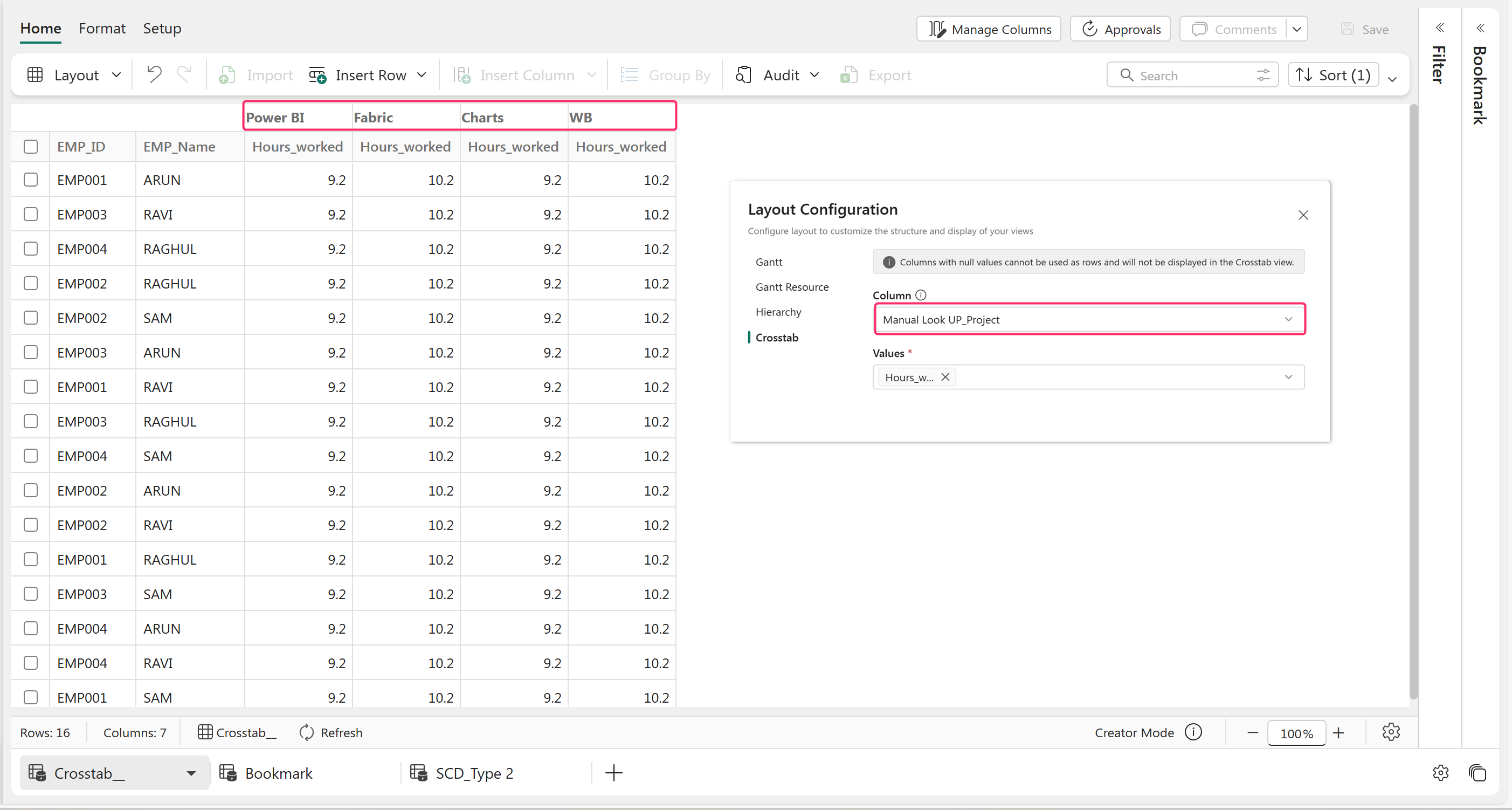
Configure the required details, such as the date column, interval type, and value fields (which can be text or numerical data). Customize the start of the year, week, and time range. You can also enable drill-down levels, subtotals, and totals as needed.
The crosstab view is displayed as below:
Crosstab view
Use the arrows highlighted to navigate across the timeline and select the appropriate timeframe to view. The arrows beside the column headers allow you to drill down as well as drill up to view the consolidated data. You can also update values in the crosstab view.
Here is another example with single-select options chosen as columns:
#### Key considerations for crosstab layout:
* Crosstab view does not work in tables with composite primary keys.
* The table should have non-editable primary keys and at least one non-null column.
* Crosstab view is also not supported for tables with type 2 SCDs.
## 2. Bookmarks
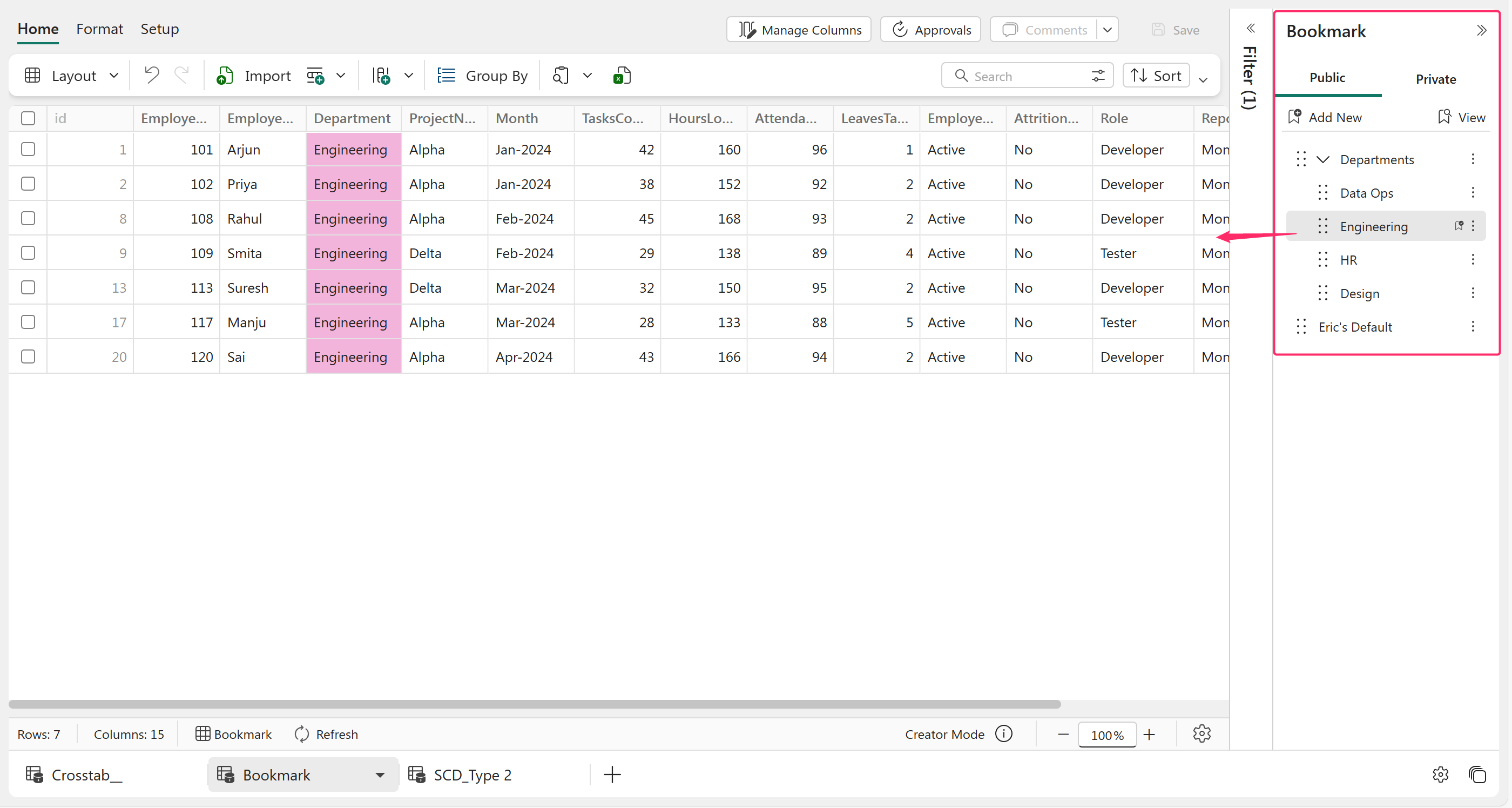
PowerTable just got the new **Bookmarks tab**—a smarter way to save and revisit your favorite table views.
A bookmark captures the current state of a table or its configuration. This includes applied filters, sorted or grouped results, layout views, and more. After bookmarking a state, you can return to it anytime and instantly, without having to rebuild from scratch.
Bookmarks
To bookmark a specific table view where you have sorted, filtered, formatted, etc., expand the **Bookmarks** tab and click **Add New.** The state is now bookmarked.
Adding a bookmark
* Bookmarks can be **public** or **private**, allowing you to share different points of view with all users or keep them private for your own reference and analysis.
* A separate bookmarks tab offers a centralized location to **create, update, share, reorder, and manage all of your bookmarks**.
* You can set any of the bookmarks as the default view for all users using the **Make default** option.
* You can easily switch between different bookmarked versions of your table.
* Organize similar bookmarks into groups for easier navigation.
* To present or view bookmarks in order, click **View** in the Bookmarks pane to launch a slideshow. You can use the navigation arrows at the bottom bar to move to the previous and next bookmarks. Click on 'Exit' to exit the slideshow view.
{% hint style="success" %}
Tip: Create a bookmark of the table’s clean, unconfigured state so you can instantly reset all filters and changes whenever you need a fresh start.
{% endhint %}
## 3. Standardized End Date for Type 2 SCDs
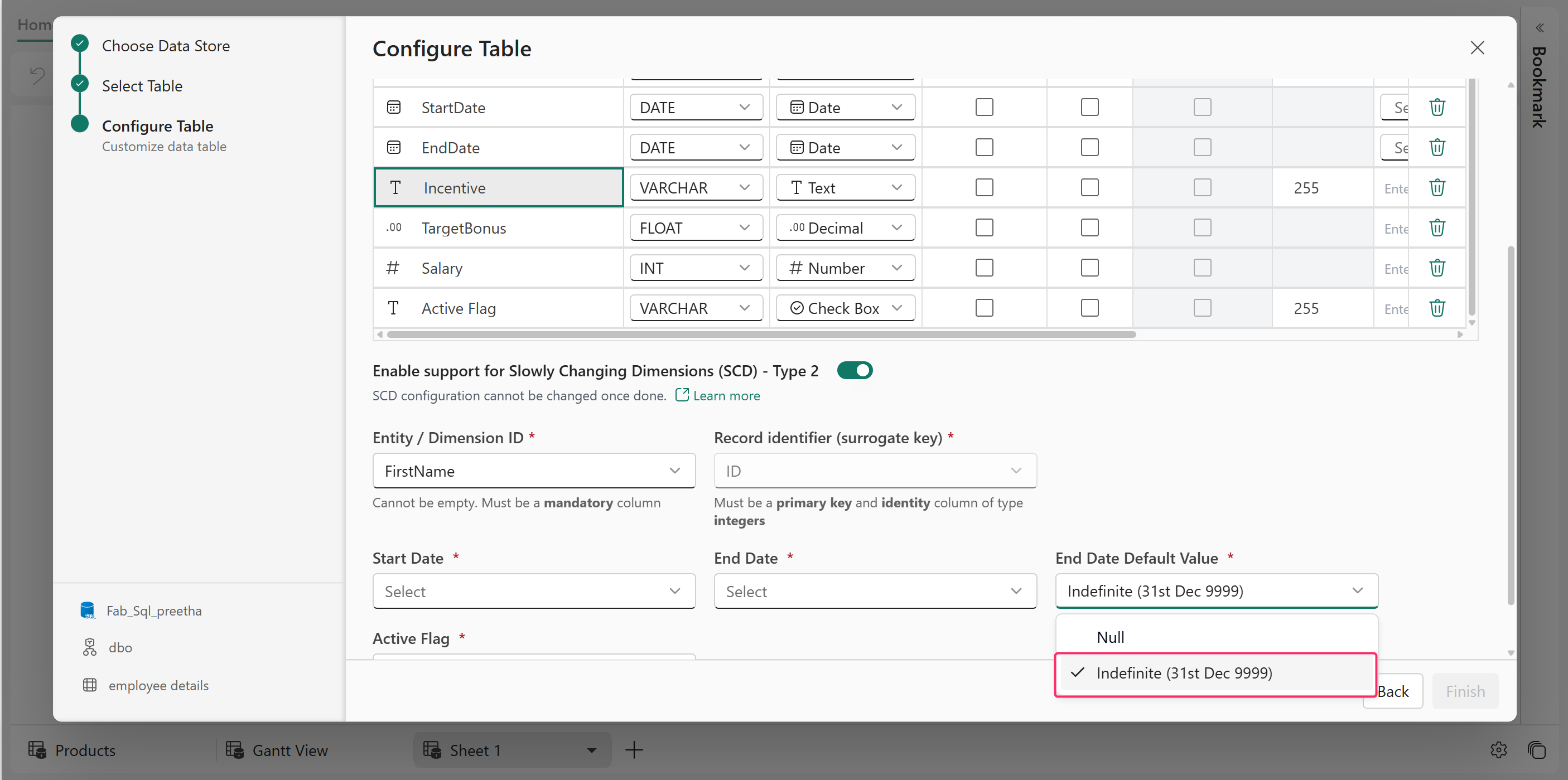
To better align with standard SCD Type 2 conventions, PowerTable now allows you to configure the End Date of all active records to **31/12/9999** instead of leaving it null.
When a record is updated, the previous version is closed with the current date, and the newly created version is given the future end date (indefinite end date 31/12/9999), ensuring complete compliance with data warehouse best practices and improving compatibility with reporting and analytics workflows.
Further end-date customization options are already in the pipeline, so stay tuned for upcoming enhancements.
## 4. Enhancements in Automation
### **4.1. Update Record - Choose between Single or Multiple Record Updates**
When automating record updates, you can now choose to update either a single record or multiple records at once. In 'Single Update', only the first record that matches the specified condition is updated, whereas 'Multiple Updates' updates all records that match the condition at once.
Single or multiple updates
When updating multiple records, PowerTable ensures data consistency by restricting the use of dynamic references in follow-up actions. Dynamic references are supported only for single-record update actions, where the updated record is exactly known.
### **4.2. Re-run Failed Automations**
You can re-run a failed automation in one click directly from the run history window instead of manually restarting the automation. A log of each re-run job is maintained along with its output results.
To change any configurations in an automation before a rerun, you must manually edit them in the configuration window; however, you cannot change/add trigger or action types that would alter the core automation flow.
### 4.3. Rich Text Editor Support in Email Body
The email body in the automation action now supports the rich text editor, enabling text formatting, text color, highlighting, indentation, bullet and numbered lists, undo/redo, hyperlinks, and more. All formatting is completely WYSIWYG (What You See Is What You Get), and it can be viewed across the preview, run history, and the delivered email.
Rich text editor in email body
## 5. Gantt and Resource View Improvements
### 5.1. Timeline and Navigation
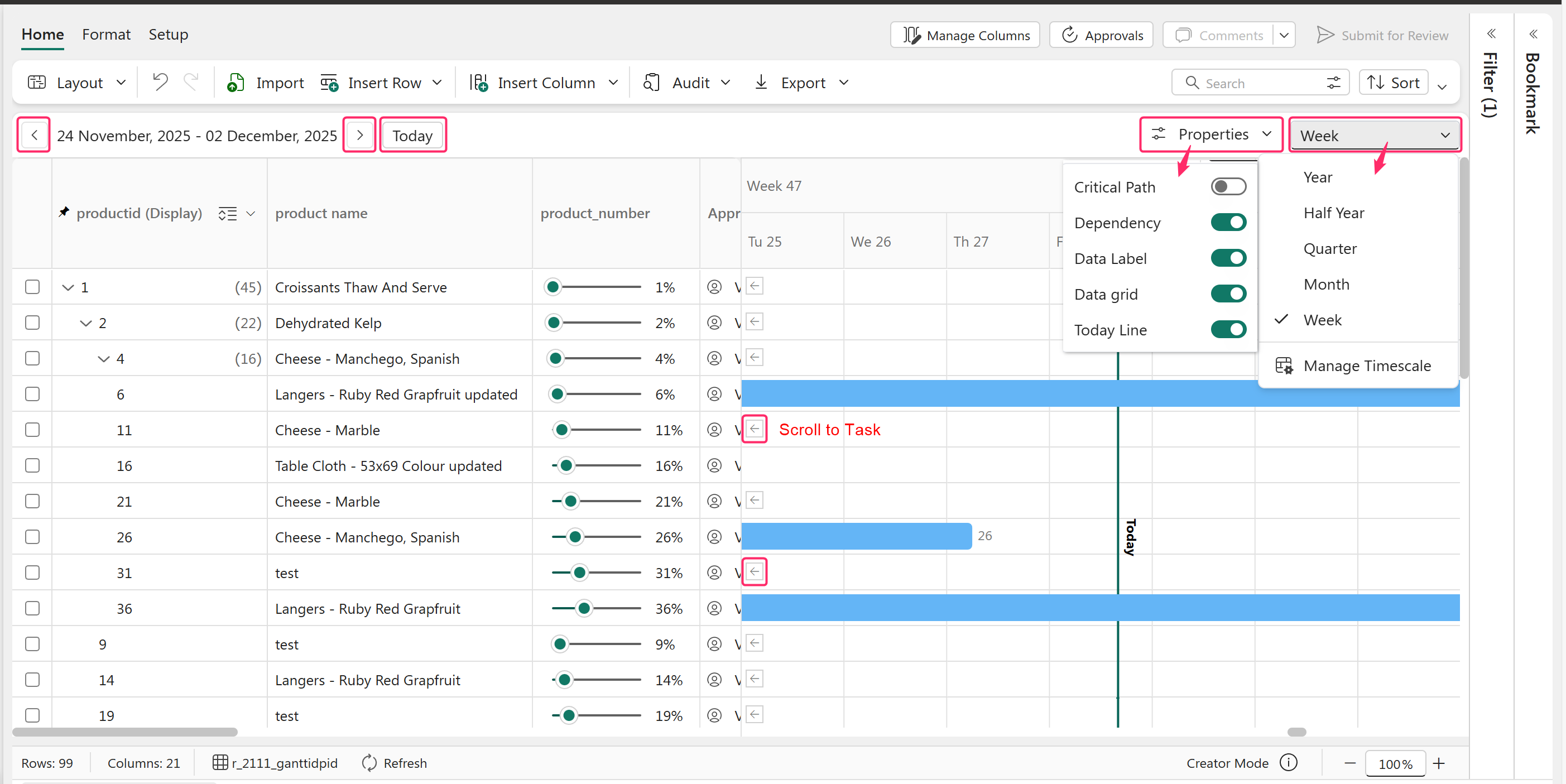
PowerTable's Gantt and Resource views are now better and easier to use, with a variety of navigation options available.
Gantt Chart View
* The Gantt view now includes a **timeline** **navigation bar** with the previous and next buttons, making it easier to navigate through the timeline. Click the **Today** button to quickly navigate to the current day.
* **View the tasks by the chosen timescale**, such as week, month, quarter, half-year, or year. You can also set a custom timescale according to your preference.
* **Display or hide** the chart properties, including the **critical path, dependencies, data labels, data grid, and today line**, as needed.
* When a task is outside the current view, the **Scroll to Task** button lets you instantly navigate to it and bring it into focus.
### 5.2. Export Gantt and Resource Views to PDF
Now you can export Gantt and Resource views of the table to PDF. PowerTable also allows you to customize the page size, orientation, and quality of PDF exports.
To export, click on **Export > Export PDF.** Click on the gear icon to access the export page settings.
Export Gantt view to PDF
### 5.3. Configure Duration Option
To generate a Gantt view, now you can configure a task duration field instead of an end date field. PowerTable automatically calculates the end date and creates the required task bar.
Duration field
### 5.4. Other Enhancements
* **Skip Days Off:** The Gantt and Resource views automatically exclude weekly and custom off days when calculating duration and end dates. This ensures that task timelines accurately reflect effort rather than calendar days. To show the schedule more accurately, the task bar skips non-working days.
* **Expand/Collapse:** The expand/collapse option is now available in the Gantt and Resource view data grids, allowing you to expand or collapse all tasks and subtasks, so you can quickly switch between a high-level project summary and a detailed task breakdown.
* **Resize grid in Resource view:** You can now resize the grid in Resource View by dragging the resize handle on the right edge. Adjust the width to your preference; the Gantt area updates accordingly and stays in sync with the Format pane settings.
* **Drag and drop task bars:** You can now directly drag and drop the task bars vertically across groups in the Resource view. This enables you to easily reassign tasks to a different resource or group without manually updating the dataset.
## 6. Other Enhancements
* With this release, we have **deprecated support for the Fabric Warehouse destination.**
* PowerTable now introduces **Creator** and **Editor** modes aligned with Microsoft Fabric Workspace roles. Fabric Workspace Admin, Member, and Contributor roles are mapped to **Creators**, while Workspace Viewers act as **Editors**, as they can still perform writebacks and save changes in PowerTable. \
Creators have full access to all features. Editors are restricted from actions such as approvals, creating/renaming new sheets, managing row and column access, configuring columns, building automations, creating forms, and performing other advanced operations.
---
# Agent Instructions
This documentation is published with GitBook. GitBook is the documentation platform designed so that both humans and AI agents can read, navigate, and reason over technical content effectively. Learn more at gitbook.com.
## Querying This Documentation
If you need additional information that is not directly available in this page, you can query the documentation dynamically by asking a question.
Perform an HTTP GET request on the current page URL with the `ask` query parameter, and the optional `goal` query parameter:
```
GET https://docs.powertable.com/explore-powertable/product-updates-release-notes/whats-new-in-powertable-november-2025.md?ask=&goal=
```
`ask` is the immediate question: it should be specific, self-contained, and written in natural language.
`goal` is optional and describes the broader end goal you are ultimately trying to accomplish on behalf of the user. GitBook uses it to tailor the answer towards what is most useful for that goal.
The response will contain a direct answer to the question and relevant excerpts and sources from the documentation.
Use this mechanism when the answer is not explicitly present in the current page, you need clarification or additional context, or you want to retrieve related documentation sections.