What's New in PowerTable - December 2025

Following the release of v1.2 in November, we are now releasing a patch update. This update introduces configurable time zone adjustment for DateTime fields, support for importing .mpp and .xer project files to create tables, a manual option to refresh the semantic model, and several enhancements to the Filter pane.

Let's look at them in detail.

1. Time Zone Adjustment Option for DateTime fields

We have now introduced adjustable time zone settings for Date-Time columns, allowing you to specify how date and time values are displayed to users and how they're adjusted for time zones.

Whether you require user-localized timestamps or absolute timestamps, PowerTable now provides a clear and consistent setup for managing time-zone behavior, allowing you to work with global datasets more accurately and reliably.

A new option has been added to the column configuration window, where you need to select one of two options: User Local or Time Zone Independent. Also, when you insert database columns of the DateTime type, you can select one of these time zone adjustment options.

Time Zone Adjustment Option
  • The User Local option converts the entered date and time to UTC for storage and then adjusts it to each user’s local time when displayed. For example, you can use 'User Local' for attendance or activity log timestamps to ensure that each employee sees times in their own local time zone.

  • The Time Zone Independent option stores in UTC and displays the timestamps exactly as they were entered, without any time zone conversion. For example, select this option for a contract milestone date for a project that must be consistent across all invoices, regardless of who opens the report.

Time zone settings

Let's consider a user in the time zone UTC-8 entering 2025-02-21 14:29:00.00 in the table app. Users in the time zone UTC+5.30 might see the date and time as follows based on the configuration:

Time Zone Option
Displayed as (for UTC+5.30)

User Local

2025-02-22 03:59

Time Zone Independent

2025-02-21 14:29

The configured time adjustment setting applies uniformly across the configured fields, forms, writeback, import/export, and other such interactions.

2. Import Project Files (.mpp, .xer) Directly into PowerTable

You can now import .mpp (Microsoft Project) and .xer (Primavera) files when creating a new table, making it easier to bring in project schedules and resource data directly into PowerTable. This reduces manual effort, speeds up onboarding time, and ensures data consistency and accuracy.

Support for .mpp and .xer imports
  • You can upload .mpp and .xer files up to a maximum size of 25 MB.

  • As always, PowerTable automatically detects and maps column data types during column configuration, and you can modify them if required.

After you've created tables with the imported files, you can visualize the project and resource data using PowerTable's Gantt and Resource views.

3. Manual Refresh for Semantic Model

PowerTable now supports manual refresh for tables connected to a semantic model, allowing users to bring in the latest inserted or updated records from the model without affecting their locally added or edited data.

Previously, PowerTable supported only scheduled refreshes when connecting tables with semantic models. You can schedule the refresh in the initial configuration window while assigning fields or through automation. We now allow users to manually sync the table with the semantic model on demand.

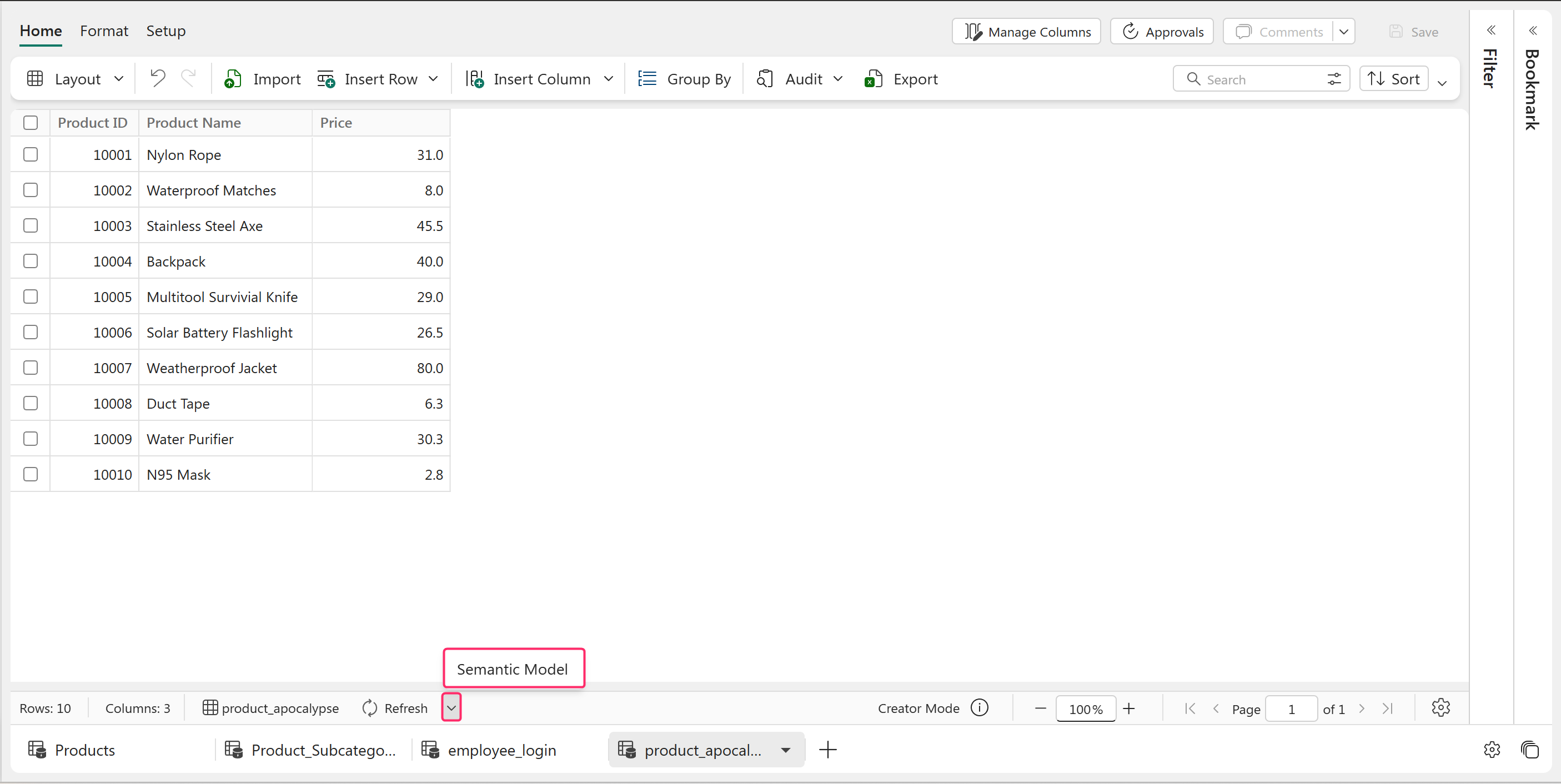
Click on the Semantic Model option beside the Refresh button to refresh the table with the semantic model.

Sync with Semantic Model

Refresh: Updates the table to show the most recent changes made by other users in the database.

Semantic Model: Updates the table with the most recent changes and new records from the semantic model.

  • Newly added and modified records within the semantic model are included and synchronized. Manual refresh does not overwrite newly added or edited local rows in Power Table.

  • Deleted records in the semantic model are not removed from the table during the sync to prevent data loss.

  • The Audit screen captures a complete log of inserted and updated rows as a result of the sync, including the user name, row details, old and new values, and timestamp.

4. Filter Pane Enhancements

4.1. Support for Formula Columns in the Filter Pane

The Filter Pane supports formula columns so you can apply filters to them directly, enabling filtering based on calculated or derived values. After adding a formula column, it automatically appears in the pane, and filter options adjust dynamically based on the formula’s return type—Date, Numeric, Text, or Boolean.

Formula column filters

Date

Basic, Advanced Filter and Top N

It features standard date filter conditions (is before, is after, is between, is on or before) and supports Top N filters, such as Top 10 by Date.

Numeric

Basic, Advanced Filter only

It supports numeric filter conditions (>, <, =, is between). Top N tab is not applicable.

Text

Basic, Advanced Filter and Top N

It supports text filter conditions such as "contains," "starts with," "is," and "is not," as well as Top N filters based on the number of occurrences.

Boolean

Basic Filter only

It supports two selectable options: true and false. There are no Advanced or Top N filters available.

This enhancement makes formula-driven analysis more flexible and intuitive across your datasets.

4.2. Re-order Filters in the Filter Pane

You can now reorder filters in the Filter Pane using drag-and-drop. Simply drag a filter to your preferred position to organize complex filter sets more efficiently. This improvement makes it easier to manage multiple filters, prioritize key conditions, and streamline your analysis workflow.

Last updated